1. Install the released package
Add rapidoreach: 1.1.2 under dependencies in pubspec.yaml, then run flutter pub get. The package wraps native Android and iOS SDKs; it is not a Flutter Web plugin.
Package and source referenceGo beyond opening a wall: use the Flutter package’s placement and survey APIs to select an available survey for an opt-in user.
rapidoreach 1.1.2 · Guide reviewed October 15, 2026
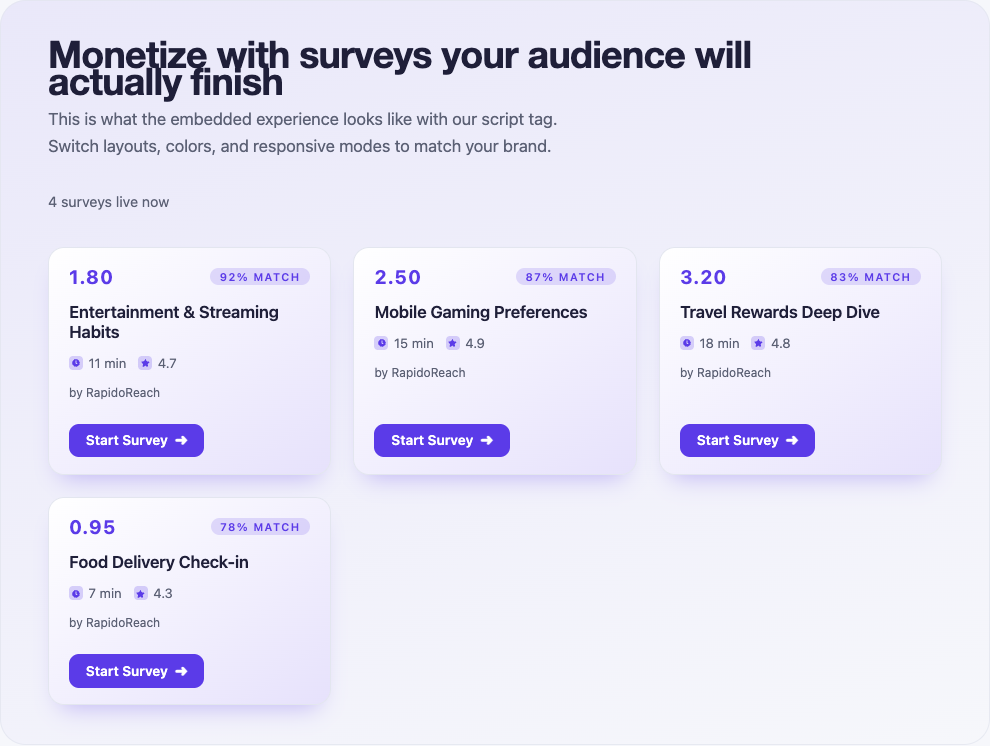 Public web playground · Sample inventory · Native presentation varies
Use the same placement tag for readiness, listing and presentation. Offer a single survey entry point only when an eligible survey identifier is returned.
Add rapidoreach: 1.1.2 under dependencies in pubspec.yaml, then run flutter pub get. The package wraps native Android and iOS SDKs; it is not a Flutter Web plugin.
Package and source referenceThe published package specifies Flutter ≥3.0, Dart ^3.8.0, Android minSdk 23 and iOS 12.0. Apply the platform privacy configuration described in its README.
Create a publisher app in the dashboard and use its SDK token with a stable, non-personal app user ID. The web UID signing App Key stays on your backend.
Flutter integration referenceReplace the placeholders in your own app. Catch SDK errors in the calling screen, handle unavailable inventory and refresh balances from your server.
import 'package:rapidoreach/rapidoreach.dart';

// Run after awaiting RapidoReach.instance.init(...).
Future<bool> openFirstSurvey() async {
  const tag = 'default';
  if (!await RapidoReach.instance.canShowContent(tag: tag)) {
    return false;
  }
  final surveys = await RapidoReach.instance.listSurveys(tag: tag);
  if (surveys.isEmpty) return false;
  final id = surveys.first['surveyIdentifier']?.toString();
  if (id == null || id.isEmpty) return false;
  await RapidoReach.instance.showSurvey(tag: tag, surveyId: id);
  return true;
}These are screenshots of the public web playground, captured October 15, 2026. They show sample survey cards shared as a visual reference, not screenshots of a Flutter native build or a guarantee of inventory.
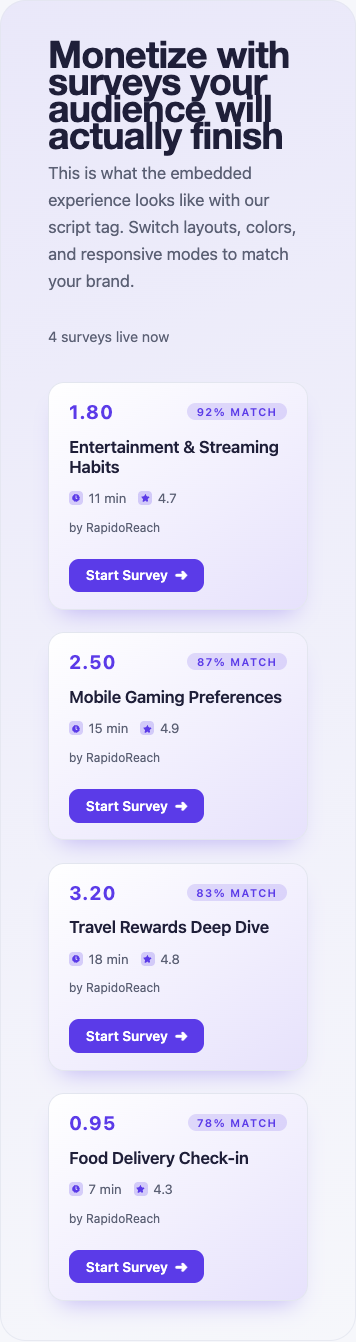
This local interaction illustrates presentation states. It does not call the SDK, load live surveys or issue rewards.
A survey is available in this simulated placement.
Open the public widget playground ↗
The playground previews layout and themes. To validate Flutter SDK behavior, use the package example and your own development app on a supported device.
Get the Flutter package / exampleUse a development publisher app. In the app’s Test users section, add the raw app user ID exactly as your SDK sends it and enable Test mode for that test user. For web, generate the signed UID from that same raw user ID.
The test survey helps verify the journey. Keep test activity separate from live earnings.
Open the integration testing guideConfigure the app’s server callback and send a Test Callback from the dashboard. Verify the documented hash, attribute the transaction to the correct user and store it once. Repeat the same transaction to check duplicate handling.
Client reward notifications should refresh UI. They should not create a second credit.
Callback verification referenceAwait init before checking availability or opening the reward center. Disable the button while initialization is pending.
Present from the foreground app on a supported mobile platform. Android needs an Activity; iOS needs an active view controller.
Catch the exception in your widget, show a retry action and check the native platform configuration. Do not treat an exception as a completed survey.
Trace the same app user ID and transaction through your callback receiver and reward ledger. Check hash verification, duplicate detection and currency conversion. Use redacted diagnostics when contacting support.
Create a publisher account, register your app and connect the first test user. Review the reward flow before opening the placement to live users.