
Test your URL and Redirect links
Testing your Campaign is required before launching your Campaign to be sure everything is working! We recommend testing for both a terminate and a complete to be sure that your redirects are incorrect.
To learn more about redirects, see here.
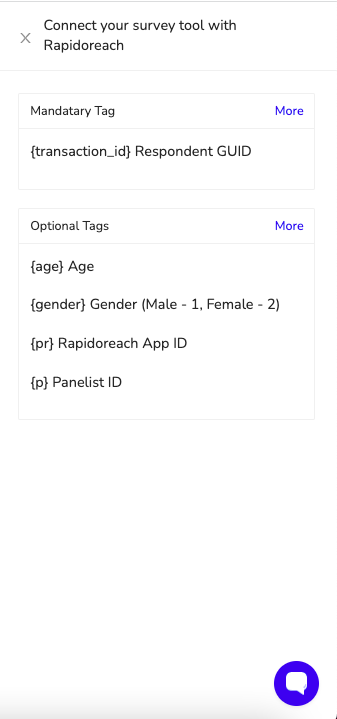
To learn more about your survey link (URL) set up, see here.
To start testing, select the "Test" button:
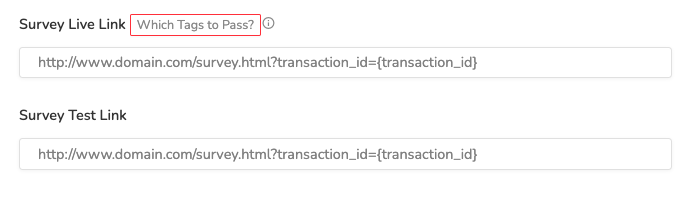
Note: Survey URL links must be a secure link. i.e. must begin with https
This will produce a pop-up that auto-fills in a unique test ID. Click on or copy that URL into your browser to test:
TIP: As noted in the pop-up, it is best to test in the incognito window. To do this, right-click on the link and select "Open Link in Incognito Window"
TIP: What does this look like for a mobile user? Right-click and select "Inspect". This allows you to view your survey as it will be seen on a phone.
This should take you to the survey you have built. Once you have finished filling out your survey, you should be automatically redirected back to RapidoReach and see a page similar to this:
If you don't see a screen similar to this, check your set-up of the redirects. Don't try launching the Campaign until you are correctly redirected!
Note: If the redirects are not working properly, the demographic data from your respondents will not be available to you!
You can view all your tests by clicking the "Results" button.
If you are having issues, feel free to reach out to info@RapidoReach.com for help!
RapidoReach Monetization
Turn your app traffic into real revenue
Join 2,000+ publishers already boosting ARPU by up to 40% with in-app surveys. No SDK headaches — integrate in minutes.
Written By
Vishal Gautam
February 28, 2022