
How to recontact people who participated in a previous survey or campaign wave
There may be times that you need the same people to take multiple surveys. This can be achieved by recontacting those people!
It's important to keep in mind that getting the same people to return can be a difficult task and not everyone will return for the second survey.
First Campaign (pre-recontact)
In your first campaign, you will target users that often visit RapidoReach. This gives a higher chance of returning for the second survey.
In the targeting section, click on advanced:
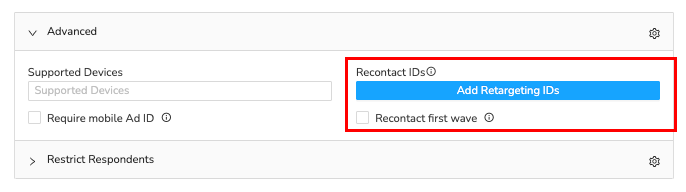
Once this is selected, you can continue with your first campaign as normal.
Note: If you didn't select this "recontact first wave" button on the first campaign, you can still recontact people! However, the response rate will be much lower.
Second Campaign (recontact stage)
Once you are ready to recontact, you will set up a brand new campaign. You cannot use the first campaign for this.
You will again open the "advanced" settings and click on "Add targeting IDs":
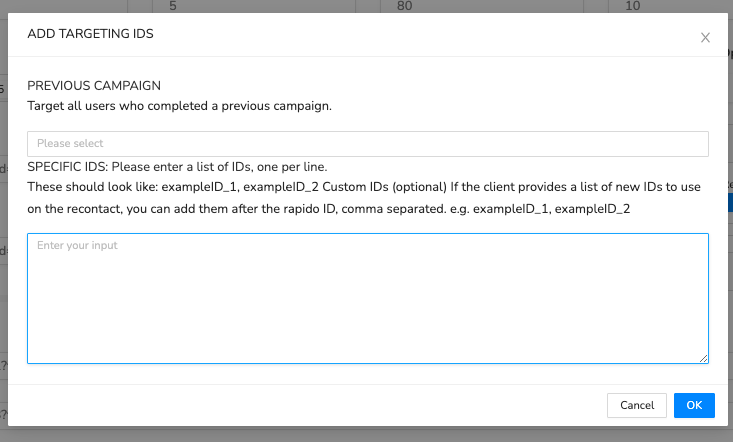
This is where you can either add in the IDs of those you'd like to return or you can add in the past campaign number. This will allow anyone who completed the last campaign will be able to re-enter:
You'll also want to be sure that the previous campaign is not in the excluded campaigns list in the Limits and Exclusion section. If you see the past campaign in this section, use the X to remove it:
Lastly, you'll need to adjust your link. It will need to append both the old ID and the new ID. Here is just an example:
https://www.surveytest.com?id={RETARGET_IDENTIFIER}&tid={ID}
The correct substitution values can always be found in the URL section:
If you have any questions, feel free to reach out to info@RapidoReach.com
RapidoReach Monetization
Turn your app traffic into real revenue
Join 2,000+ publishers already boosting ARPU by up to 40% with in-app surveys. No SDK headaches — integrate in minutes.
Written By
Vishal Gautam
February 28, 2022